API Authentication
The Uptimia API uses a type of HTTP authentication known as "Bearer authentication" or "Token authentication." You must include your API key whenever you make a request. To get your API key, go to your Uptimia account's Settings → API Keys section. You can read more about this authentication method here.
Do not forget to include the following HTTP header in each request:
HTTP header
Authorization: Bearer <token>
How to create an API key
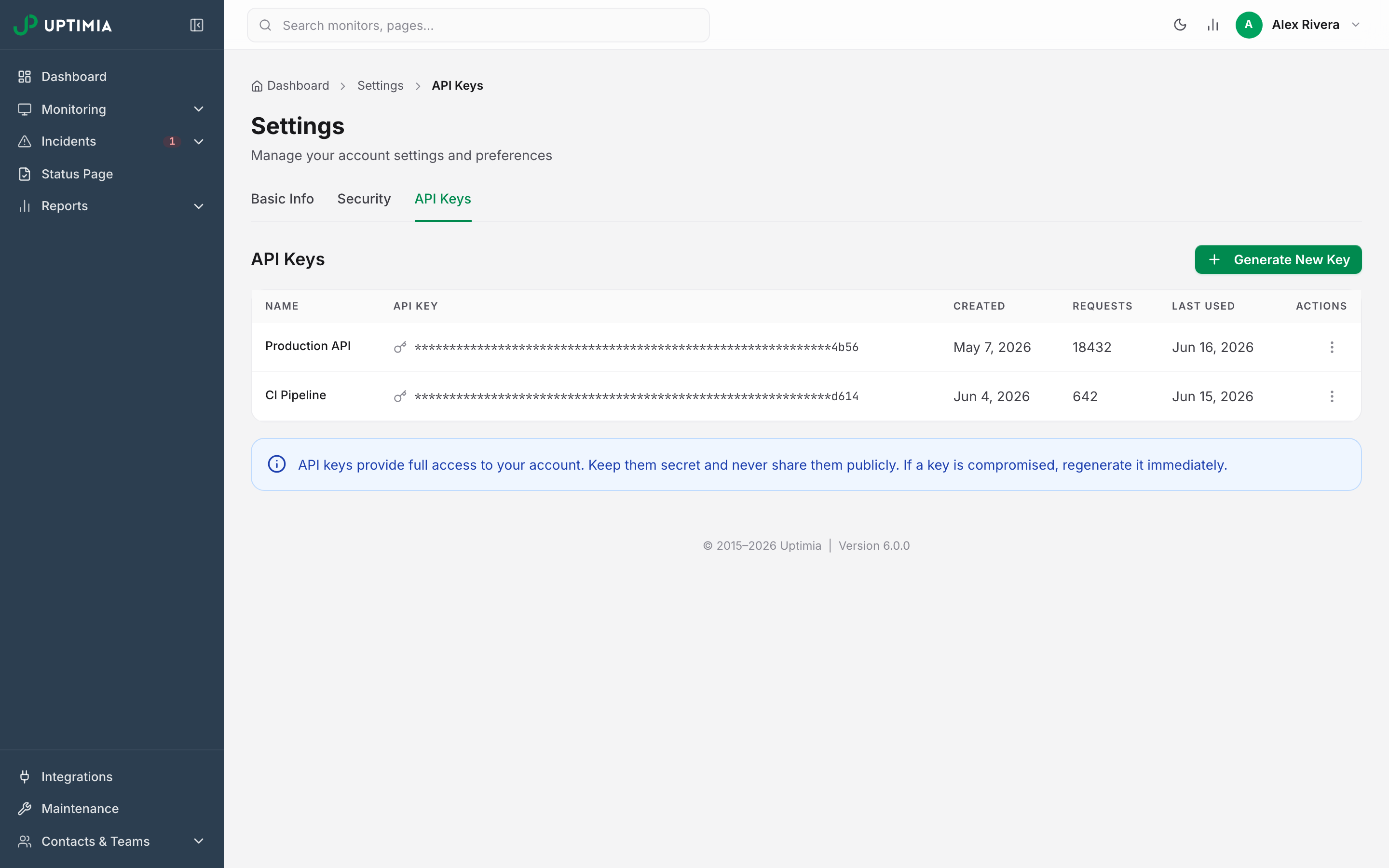
- Log in to your Uptimia account, open Settings → API Keys, and click Generate New Key.
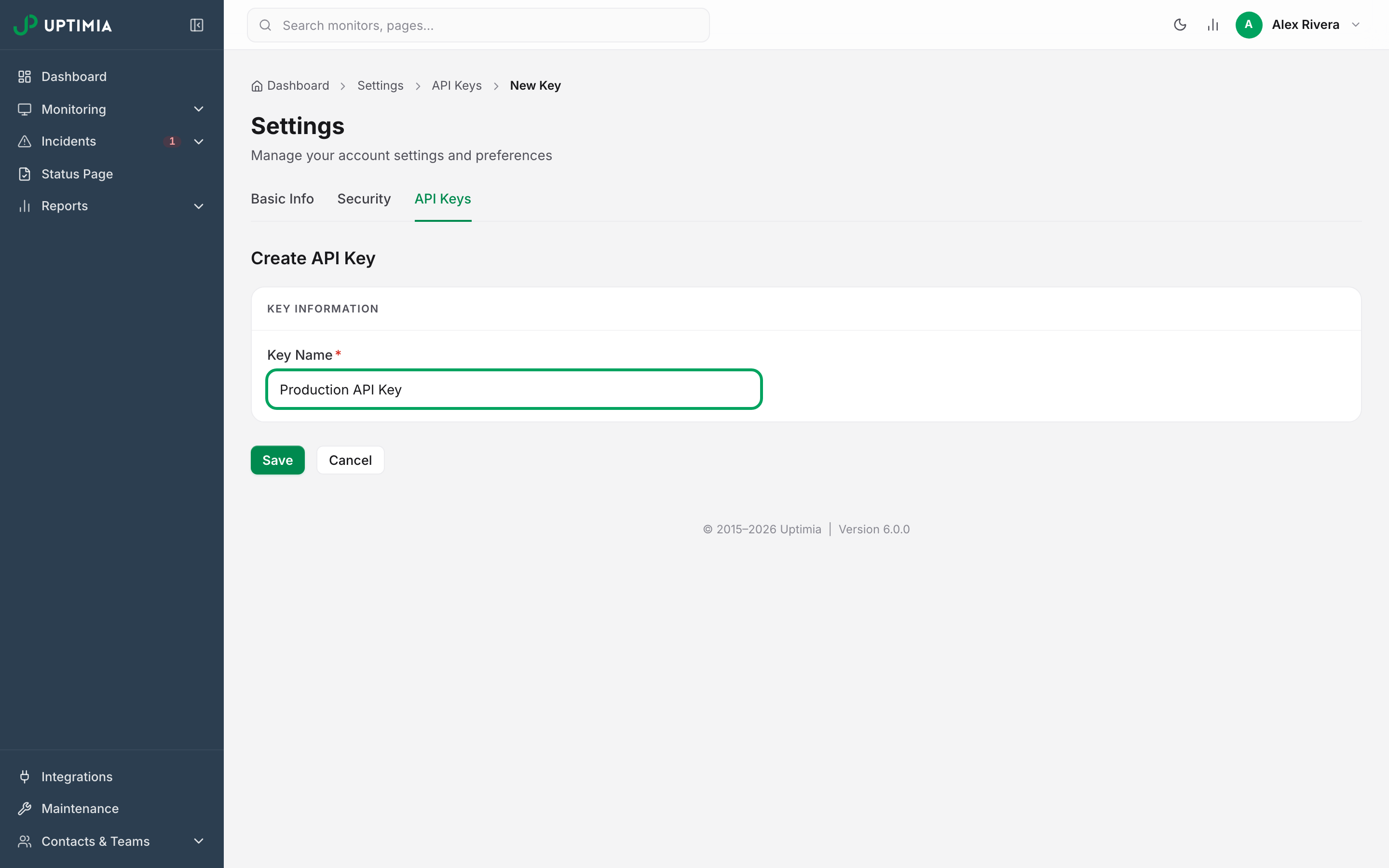
- Give your API key a name (just for your own reference) and click Save.
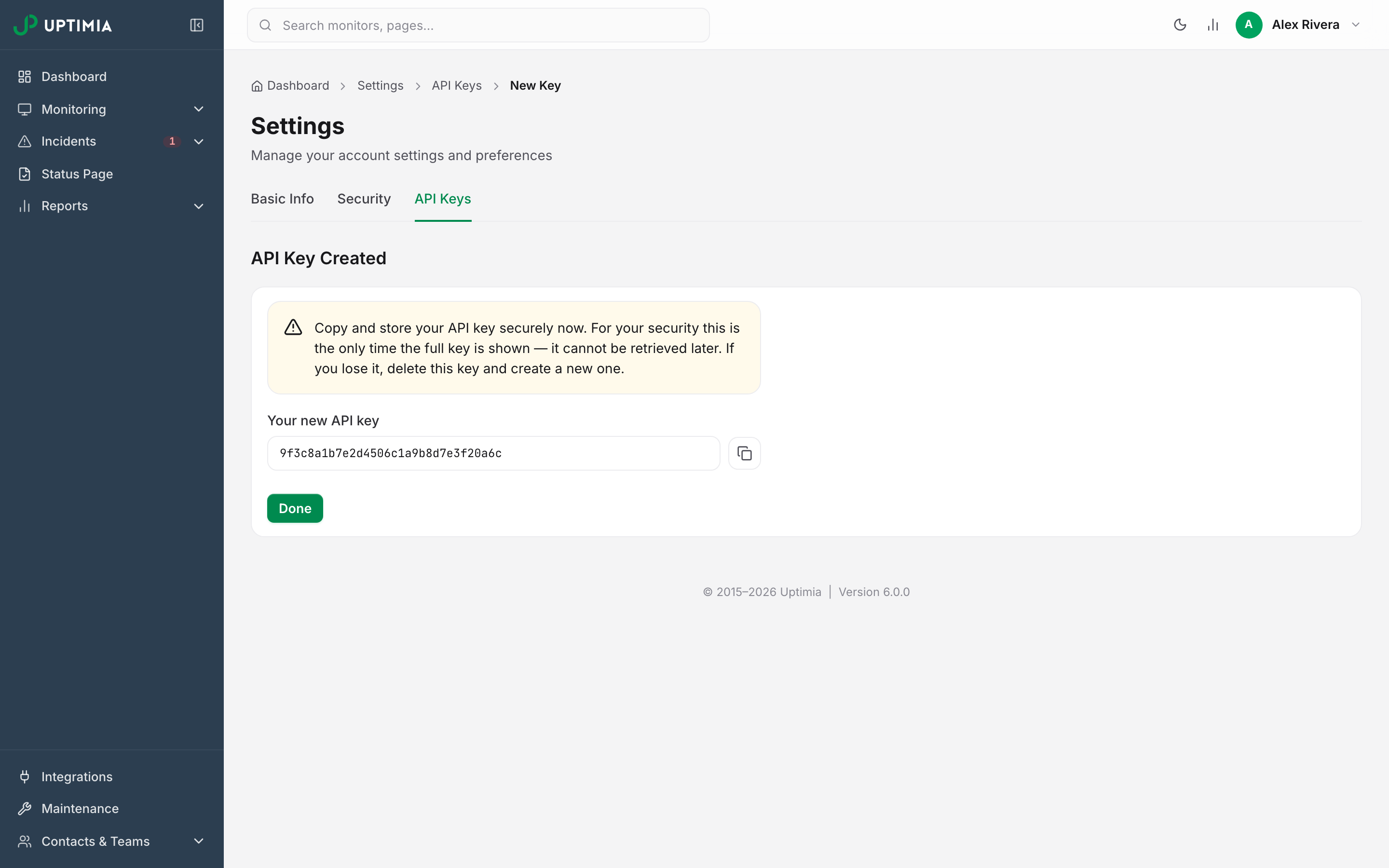
- Copy your new API key and store it somewhere safe. For your security the full key is shown only once, right after it is created — it cannot be retrieved later.
- Use this API key to authenticate your requests to the Uptimia API.
danger
Remember to keep your API key safe and do not share it with anyone. If you suspect it is compromised, delete it and create a new one.
How to use an API key
Include your API key in the Authorization header as a Bearer token. You can do this with cURL or any HTTP client you prefer:
cURL request sample
curl "https://www.uptimia.com/api/v2/uptime" \
-H "Authorization: Bearer <token>"
What happens when the API key is invalid
You will receive the following error message if the API key is invalid:
HTTP 401 Unauthorized
{
    error_code: 'invalid_api_key'
    message: 'API key invalid'
}
Where to find the API documentation
You can find the documentation here.